LAUNCHMongoDB 8.3 is built for the sub-100ms retrieval & zero downtime AI demands. Read blog >
AI DATAStop fighting your data layer. Get the memory & retrieval agents need to scale. Read blog >

What is PyMongo? Getting Started with Python and MongoDB

Try Atlas Today

PyMongo is the official MongoDB driver for synchronous Python applications. If you want to learn how to connect and use MongoDB from your Python application, you've come to the right place. In this PyMongo tutorial, we'll build a simple CRUD (Create, Read, Update, Delete) application using FastAPI and MongoDB Atlas. The application will be able to create, read, update, and delete documents in a MongoDB database, exposing the functionality through a REST API. You can find the finished application on Github.

What is PyMongo? Getting Started with Python and MongoDB

Books management CRUD application

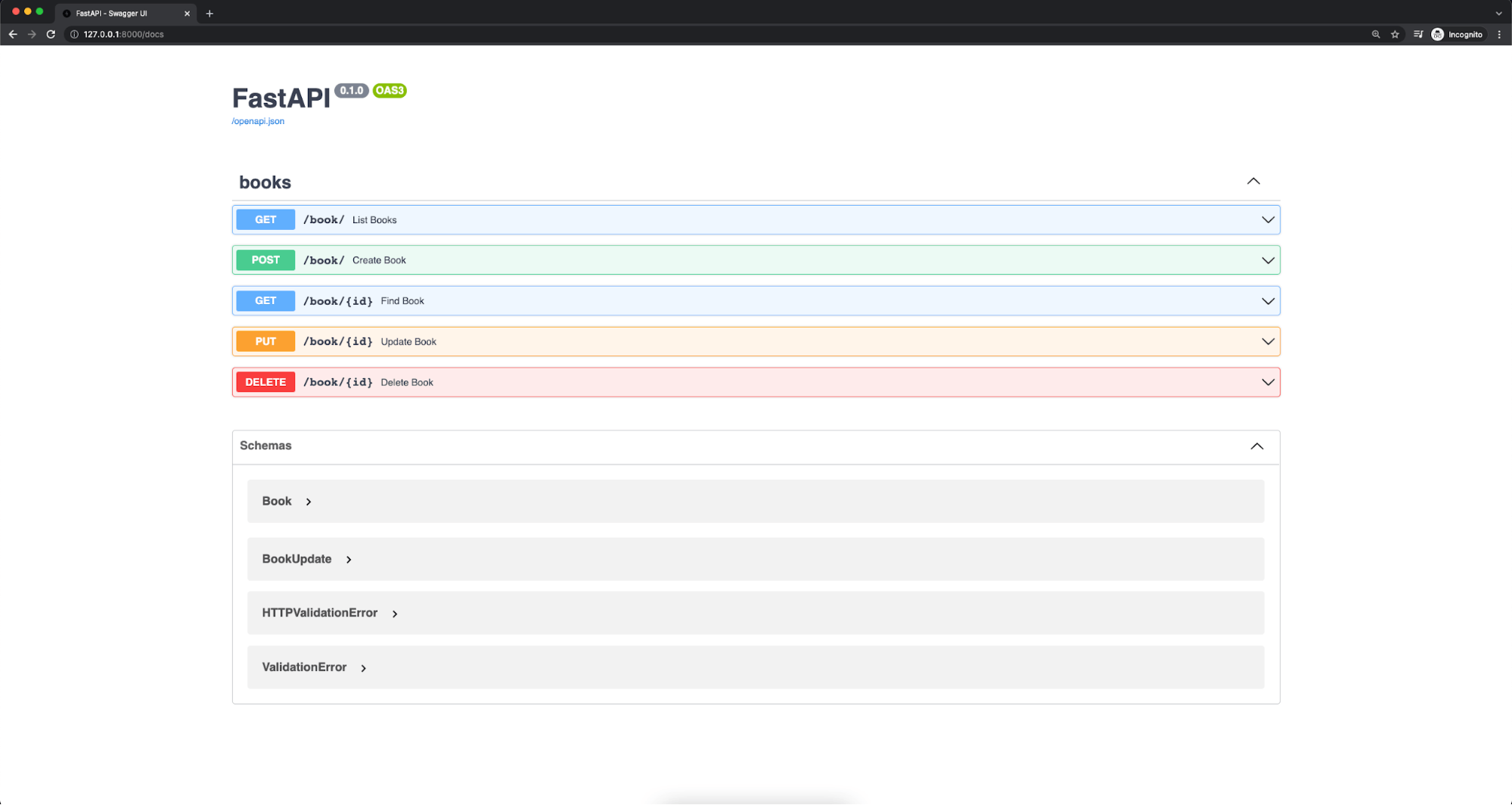
My favorite way to learn new technologies is by building something. That's why we'll code the most trivial, yet useful, backend application—a CRUD app for managing books. The CRUD operations will be available through a REST API. The API will have five endpoints:


To build the API, we'll use the FastAPI framework. It's a lightweight, modern, and easy-to-use framework for building APIs. It also generates a Swagger API documentation that we'll put to use when testing the application.

We'll be storing the books in a MongoDB Atlas cluster. MongoDB Atlas is MongoDB's database-as-a-service platform. It's cloud-based and you can create a free account and cluster in minutes, without installing anything on your machine. We'll use PyMongo to connect to the cluster and query data.

Requirements

The finished project is available on Github. You can also follow the step-by-step instructions to build the project from scratch. To do that, you'll need the following:

Project setup and configuration

Before we begin, we'll create a virtual Python environment to isolate the project from the rest of the globally-installed Python packages. We'll use the venv package, which comes with your Python installation. Execute the following command from the terminal:


Note: You might have to run this command using the python3 executable. This is because, on some operating systems, both Python 2 and 3 are installed. Once you’ve logged into your virtual environment, the python executable will use Version 3 automatically.

Now that we have a virtual environment, we can install the required packages. We'll use pip—the package installer for Python, which is also included with your Python installation:


Next, we'll create a directory for our project, navigate to it, and scaffold the files needed for the project.


Note: We'll be using shell commands to create files and directories, and navigate through them. If you prefer, you can use a graphical file explorer instead.

Let's start by implementing a simple root / endpoint that returns a welcome message. Open the main.py file in your favorite code editor and add the following:

pymongo-fastapi-crud/main.py


Save the file and run the application using the uvicorn package, which was installed together with the fastapi package.


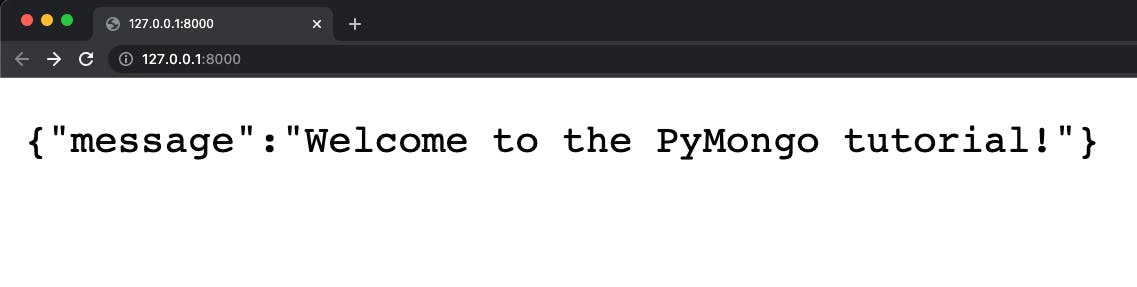
You should see the following response:


Open http://127.0.0.1:8000 in your browser. You should see the welcome message.

Well done! We have a server running. In the following section, we'll connect to our MongoDB Atlas cluster.

Connect to your MongoDB Atlas cluster

Next, we need to connect to the MongoDB Atlas cluster we created earlier. Locate your connection string and add it to the .env file. Replace username and password with your credentials.

pymongo-fastapi-crud/.env


We'll use the python-dotenv package to load environment variables ATLAS_URI and DB_NAME from the .env file. Then, we'll use the pymongo package to connect to the Atlas cluster when the application starts. We'll add another event handler to close the connection when the application stops. Open the main.py file again and replace its contents with the following:


The uvicorn process will detect the file change and restart the server. You should see the message Connected to the MongoDB database! in the terminal.

Create models for API requests and responses

MongoDB has a flexible schema model which allows having documents with different structure within the same collection. In practice, the documents in a collection usually share the same structure. If needed, you can even enforce validation rules per collection. We won't cover database validation in our PyMongo tutorial. Instead, we'll ensure that data passing through the REST API is valid before storing it in the database.

We'll create a couple of models for the API requests and responses and let FastAPI do the heavy lifting for us. The framework will take care of the validation, converting to the correct data types, and even generating the API documentation. Open the models.py file and add the following:

pymongo-fastapi-crud/models.py


We're extending the BaseModel from the pydantic package and adding the fields for our models. For the Book model, we've got four required fields: id, title, author, and synopsis. The id field is automatically populated with a UUID (universally unique identifier). We also have an example for the Book model that will be displayed in the API documentation.

The fields in the BookUpdate model are optional. That will allow us to do partial updates. We don't have an id field in the BookUpdate model because we don't want to allow the user to update the id.

Now that we've got our models defined, let's implement the REST API endpoints and use the models to validate the data.

Implement the REST API endpoints

It's time for the fun part! Let's build the REST API endpoints for our books! We'll add the endpoints implementation in the routes.py file, and load the routes in the main.py file. We'll start by initializing an APIRouter object in routes.py:

pymongo-fastapi-crud/routes.py


As you notice, we're importing APIRouter from the fastapi package. We'll use this object to define the endpoints for our REST API. We're also importing the Book and BookUpdate models we've defined earlier.

POST /book

The first endpoint we'll implement is the POST /books endpoint for creating a new book. Add the following after the router = APIRouter() line:

pymongo-fastapi-crud/routes.py


The route is / because we'll prefix all the books endpoints with /books. The response_description will be displayed in the API documentation. The status_code is the HTTP status code returned when the request is successful. We use the Book model to validate both the data passed in the request body and the response we sent back. FastAPI handles the validation for us. In the body of the function, we're using PyMongo's insert_one() method to add the new book to the books collection. We're using the find_one() method to retrieve the newly created book from the database. You can read more about the insert_one() and find_one() methods in the PyMongo documentation article for collection level operations.

Finally, we're returning the created book.

GET /book

Next, we'll implement the GET /book endpoint for returning a list with all documents in the books collection. Append the following to the end of the routes.py file:

pymongo-fastapi-crud/routes.py


For the response model, we're using the List[Book] type. This means that the response will be a list of Book objects. We're also using the find() method to retrieve no more than 100 books from the database. To learn more about limit and the other parameters of the find() method, check out the dedicated PyMongo documentation page.

GET /book/{id}

Let's create another GET endpoint for retrieving a single book by its id. Add the following to the end of the routes.py file:

pymongo-fastapi-crud/routes.py


Here, we're using the find_one() method to retrieve a single book from the database. If the book is found, we're returning it. If the book is not found, we're raising an HTTPException with a 404 Not Found status code and an appropriate message.

PUT /book/{id}

Arguably, the most important endpoint for our REST API is the PUT /book/{id} endpoint. This endpoint allows us to update a single book. Add the implementation to the end of the routes.py file:

pymongo-fastapi-crud/routes.py


Let's go through the code. First, we're building an object that we'll use to update the book. Then, if there are any fields in the book object, we're using the update_one() method to update the book in the database. It's important to note that we're using the $set update operator to ensure that only the specified fields are updated instead of rewriting the whole document.

Then, we check the modified_count attribute of the update_result to verify that the book was updated. If that's the case, we're using the find_one() method to retrieve the updated book from the database and return it.

If there are no fields in the book object, we're just returning the existing book. However, if the book is not found, we're raising an HTTPException with a 404 Not Found status code.

DELETE /book/{id}

The last endpoint we'll implement is the DELETE /book/{id} endpoint for deleting a single book by its id. Add the following to the end of the routes.py file:

pymongo-fastapi-crud/routes.py


The only remarkable thing here is that if the book was deleted, we're returning a 204 No Content status code. This is a success status code indicating that the request has succeeded and there's no content to send in the response payload body.

Register the

Finally, we need to register the /book endpoints. Open the main.py file, import the routes module, and register the book router. Your final version of the main.py file should look like this:

pymongo-fastapi-crud/main.py
Explore the API documentation page and test the endpoints

Make sure your uvicorn process is still running before you continue. If it's not, you can start with the same command in the terminal:


Navigate to the http://localhost:8000/docs URL in your browser. This is the API documentation page that FastAPI and Swagger generated for us!

We see all the endpoints we created and we can even send requests right from this page! Open the POST tab and click on the Try it out button. You should see a request body prefilled with our example book. Click on Execute to send the request. You should see a successful response with the book we created. You can grab the id of the book from the response and use it in one of the other endpoints—GET /book/{id}, PUT /book/{id}, or DELETE /book/{id}.

But what if we try creating the same book twice? We'll get a 500 Internal Server Error response. If we check the terminal where the server process is running, we should see an error message containing the following:


We received a DuplicateKeyError because we tried to insert a book with the same _id field twice. The _id field is a unique index that MongoDB creates for every collection. We can't have two books with the same _id. The actual problem here is that we're not handling this error in our code. The error 'bubbles up' and the server responds with a 500 Internal Server Error. As an exercise, you can think of an appropriate response to send back to the client and handle this error.

You can also test the validation rules we've created. For example, try removing the required title field from the request body and click on Execute. You should see an error message saying that the title field is required.

The generated API documentation page is very useful for trying out different scenarios and seeing how the API behaves. Have fun exploring the API we built!

Conclusion

In this tutorial, we saw how to create a simple CRUD application with FastAPI and PyMongo, the official MongoDB driver for synchronous Python applications. We also saw how we can quickly set up a free MongoDB Atlas cluster and connect to it. MongoDB Atlas is a lot more than just a MongoDB cloud database. For example, you can easily extend your API to provide a full-text search with Atlas Search. All of these services are available in MongoDB Atlas. If you want to give them a try, create your free account.

FAQs

Get started with Atlas today

Get started in seconds. Our free clusters come with 512 MB of storage so you can play around with sample data and get oriented with our platform.
Try FreeContact sales
GET STARTED WITH:
  • 125+ regions worldwide
  • Sample data sets
  • Always-on authentication
  • End-to-end encryption
  • Command line tools