All done!
For additional questions or problems, check out or Frequently Asked Questions before contacting your MongoDB AP team.
MongoDB
A guide that walks you through the steps to get into your Coupa account and start invoicing.

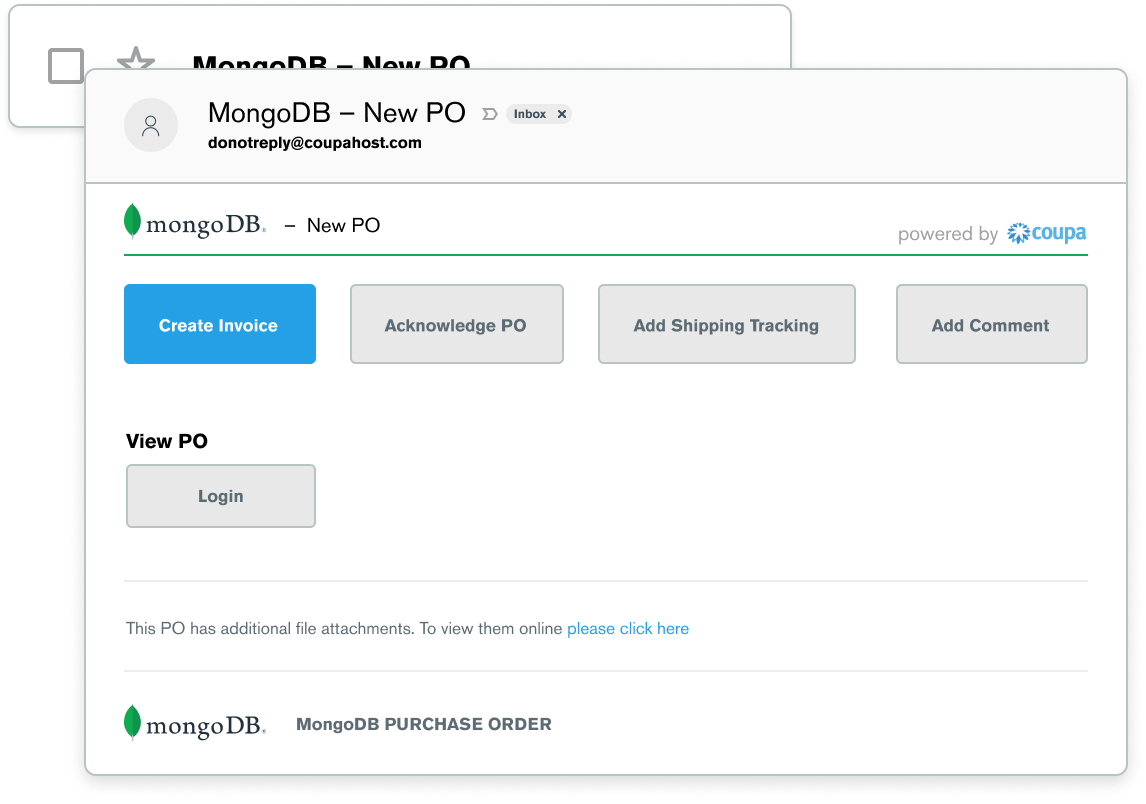
You will receive an email from Coupa containing your Purchase Order (PO).
To begin creating an invoice, click on the blue Create Invoice button.

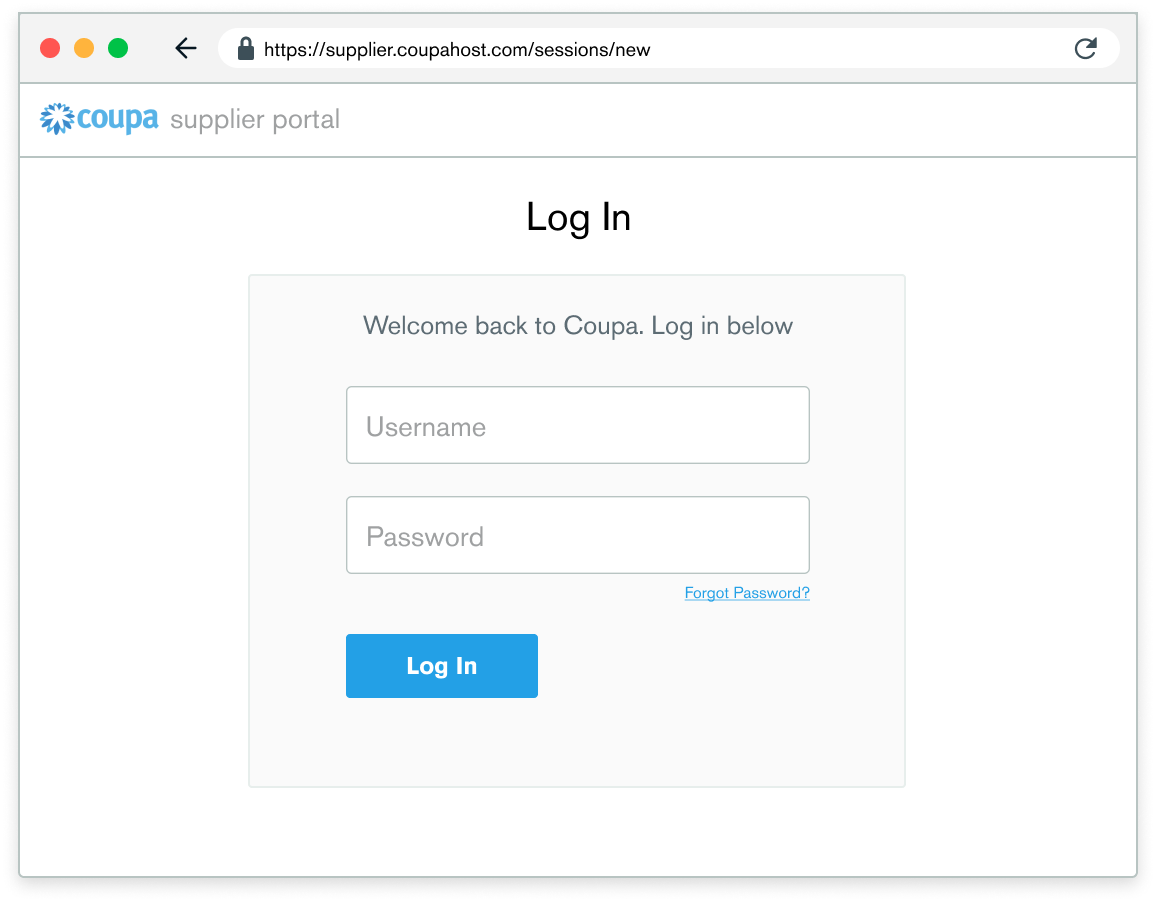
Head over to the Coupa Supplier Portal (CSP) and log in with your Coupa username and password.
If you don't have an account yet, you can Register for one on the same screen.


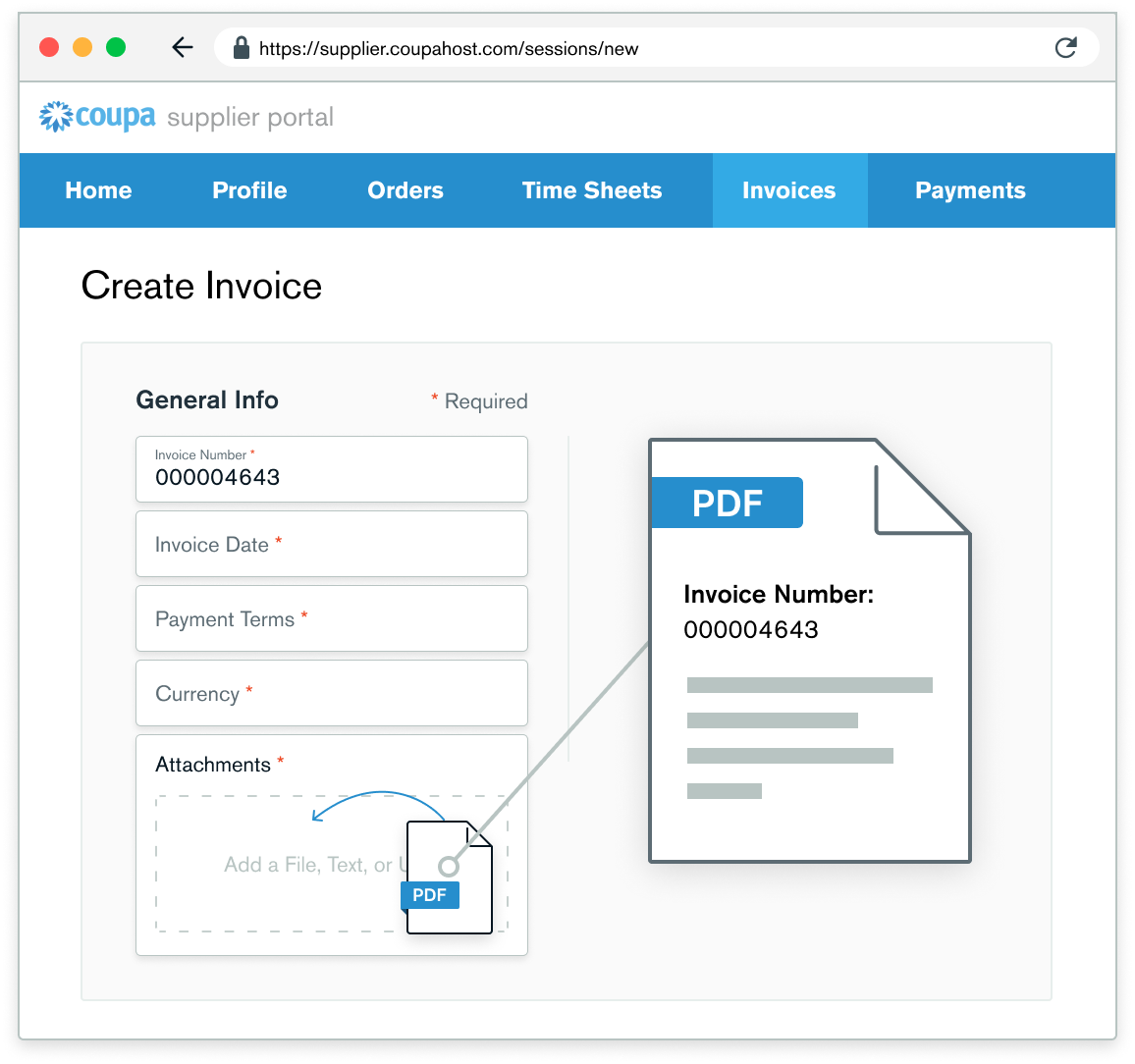
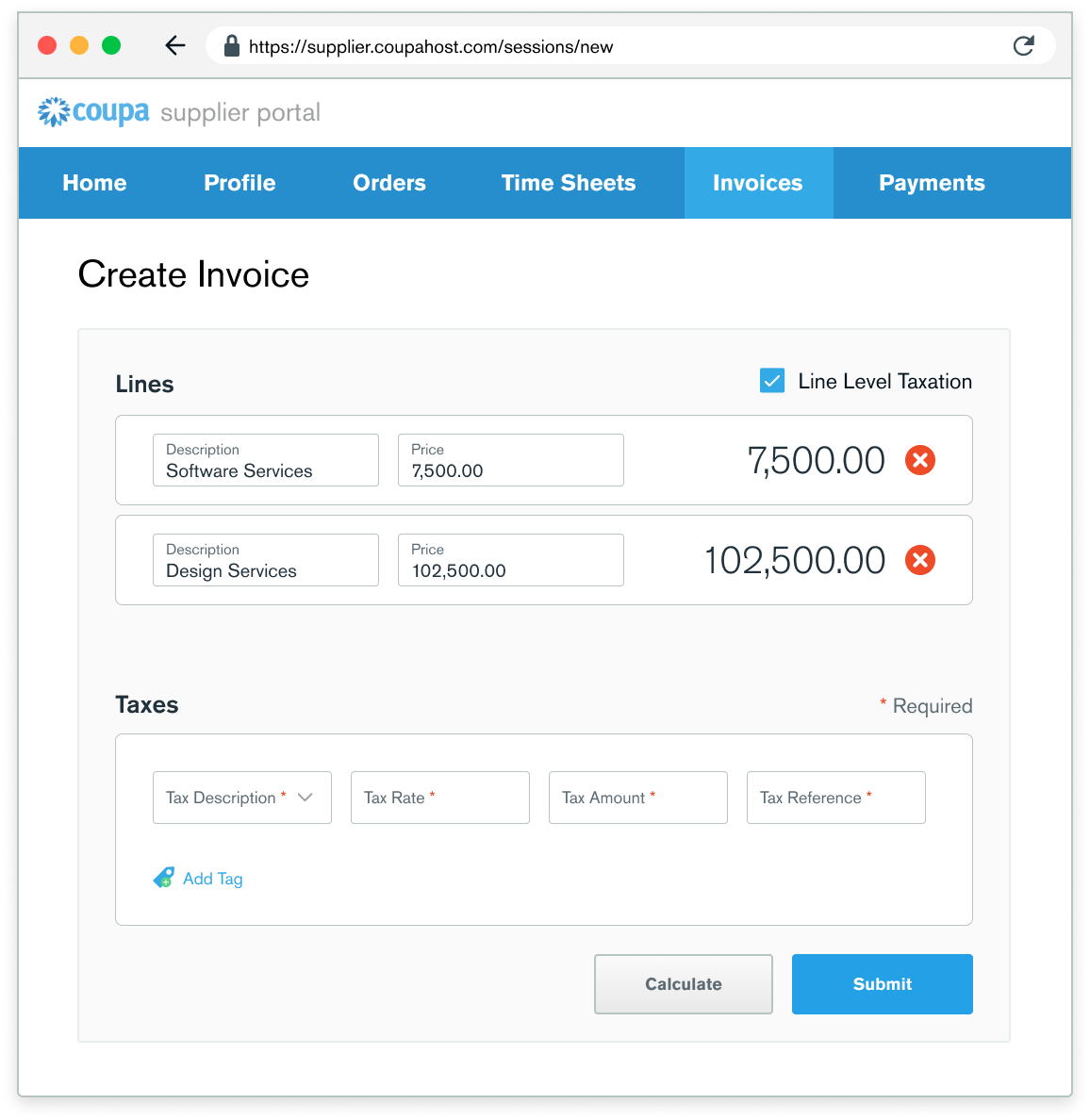
All fields marked with the red * are required
Attach the PDF Invoice in the Attachments field.

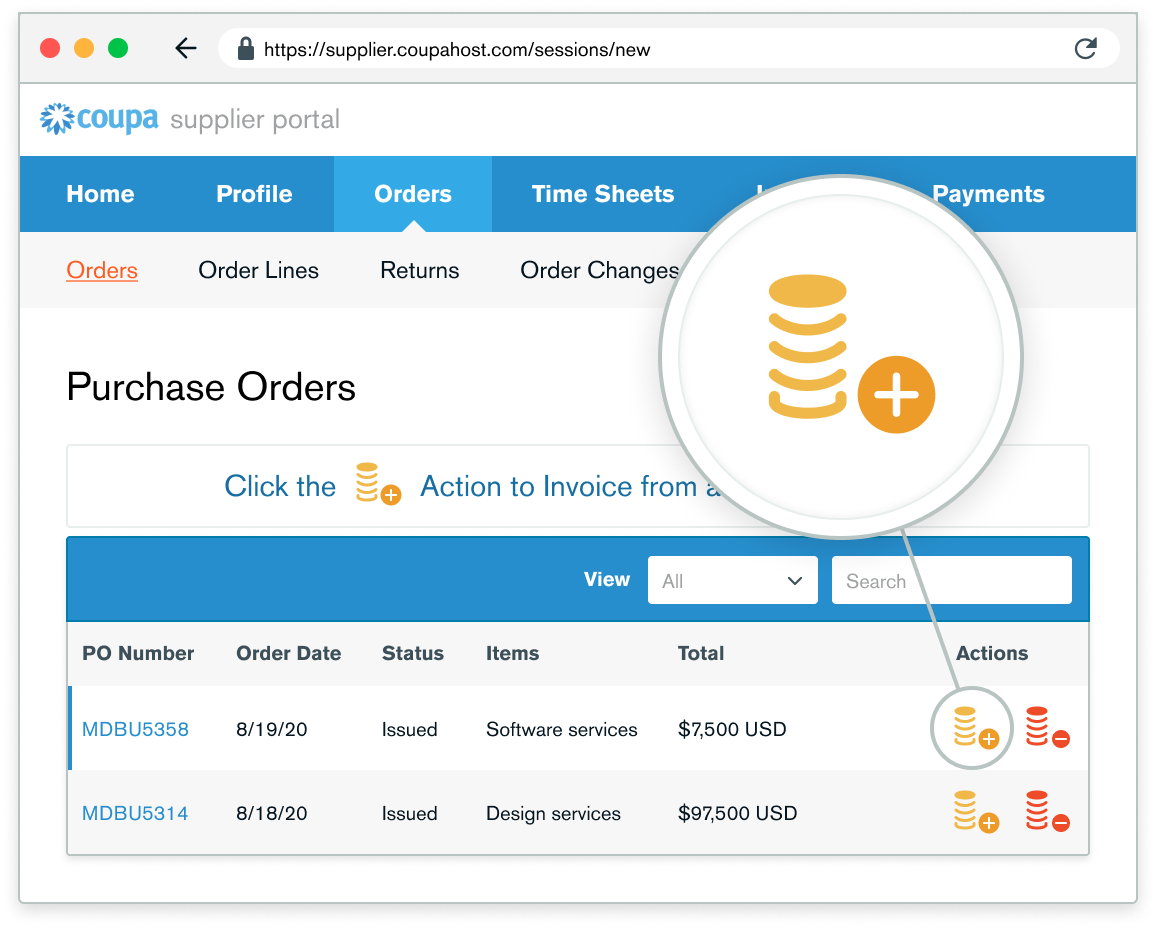
If you need to delete a purchase order line or you are invoicing against a purchase order with multiple lines, please click on the red X next to the line you are not using (next by the line total amount).
Next you will adjust the Price to reflect the desired billing amount.

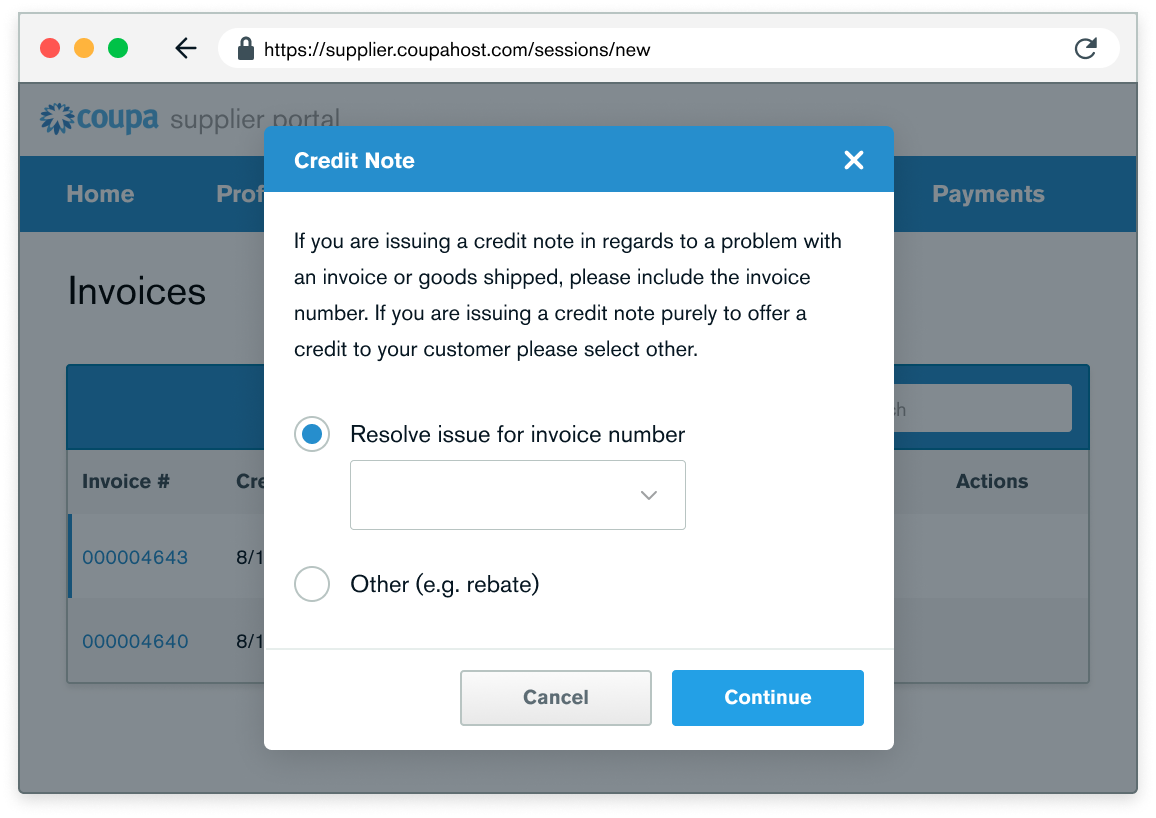
Not everything goes smoothly all the time. Coupa offers a credit system to resolve invoices if needed.
Go to the Invoices Tab then scroll to the Create Invoices Section. There will be 4 buttons, click on “Create Credit Note”.
For additional questions or problems, check out or Frequently Asked Questions before contacting your MongoDB AP team.