LAUNCHMongoDB 8.3 is built for the sub-100ms retrieval & zero downtime AI demands. Read blog >
AI DATAStop fighting your data layer. Get the memory & retrieval agents need to scale. Read blog >

How to Use R with MongoDB

We recommend you try the MongoDB Atlas free-tier cluster for this tutorial. MongoDB Atlas is easy to set up and has sample datasets for R MongoDB examples.
Get Started Free
Learn more about Atlas

R is a powerful and popular language for statistical analysis, modeling, and visualization. MongoDB offers powerful querying features for fast retrieval and analysis of big data, and its flexible schema makes it a natural choice for unstructured datasets. By connecting MongoDB and R, we can perform advanced data analytics in no time using the MongoDB aggregation pipeline.

Read on to learn more about R MongoDB drivers and get started using them for data analysis.

Getting Started with MongoDB in R

To install R, download the relevant package for your operating system from the CRAN downloads page.

You can then install and use the latest version of RStudio to view the results and visualizations all in one place.

You’ll also need to be running MongoDB. We recommend you try the MongoDB Atlas free-tier cluster for this tutorial. MongoDB Atlas is easy to set up and has sample datasets for R MongoDB examples. You can load sample datasets using the “…” next to the collections button on your cluster page.

R Packages for MongoDB

You’ll need a MongoDB client to establish a reliable MongoDB connection in R. The preferred R MongoDB driver, mongolite, is fast and has a syntax similar to that of the MongoDB shell. mongolite is the one that will be used in the following examples. The other packages listed here haven’t been as active on Github recently. The most popular packages to connect MongoDB and R are:

How to Connect to a MongoDB Database in R

There are several sample datasets available in the MongoDB Atlas free cluster. You will use the sample_training database as it contains many collections suitable for data analysis with R.

Open RStudio (or any IDE/editor of your choice). Create a new document with the name trips_collection.R. You can create a separate file for each collection used in this tutorial (refer to github repository).

Install mongolite by running the following in the newly created file (or console if you are using RStudio) as:


Then, load it using the command:


Next, connect to MongoDB and retrieve the collection using the mongo() function in the R code to get the trips collection from the sample_training database. This collection contains data from trips executed by the users of a bike share service based in New-York City.


You can verify that your code is now connected to the MongoDB collection by checking the total number of documents in this database. To do so, use the count() method.


Now that you have a connection established to the database, you will be able to read data from it to be processed by R.

How to Get Data into R from MongoDB

In this section, you will learn how to retrieve data from MongoDB and display the same. Let’s continue with the trips_collection from the previous section.

You can use the MongoDB Atlas UI to view the trip_collection documents, or RStudio to visualize it.

Get any one sample document of the collection using the $iterate()$one() method to examine the structure of the data of this collection.


Now that you know the structure of the documents, you can do more advanced queries, such as finding the five longest rides from the trips collection data. And then listing the duration in descending order.


The above query uses sort and limit operators to produce this result set.

How to Analyze MongoDB Data in R

To analyze MongoDB with R in more detail, you can use the MongoDB aggregation framework. This framework allows operators to create aggregation pipelines that help in getting the exact data with a single query.

Suppose you want to check how many subscribers took trips of a duration >500 seconds and returned to the same station where they started. The query uses MongoDB $expr (expressions) to compare two fields in the same document.


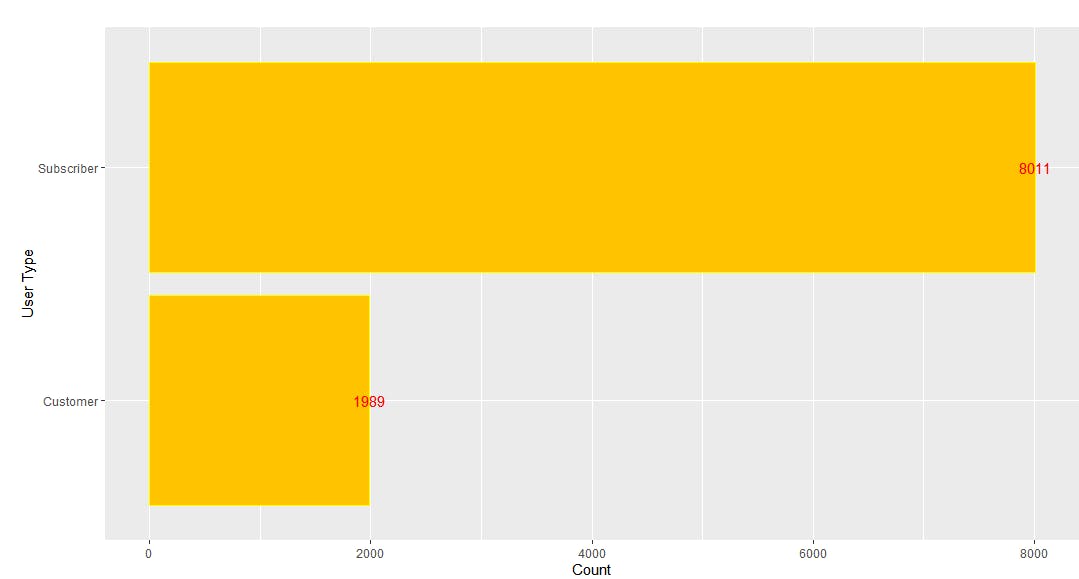
Combining these operators with some R code, you can also see which type of users are more common: subscribers or one-time customers. To do this, group users by usertype field.


To compare the results, you can visualize the data. It’s convenient to convert the data obtained from mongolite into a dataframe and use ggplot2 for plotting.


You should see the following plot in RStudio:

Let’s explore another bar plot with a different collection — inspections. This collection contains data about New York City building inspections and whether they pass or not. For the following examples, start with a new file named inspections_collection.R.


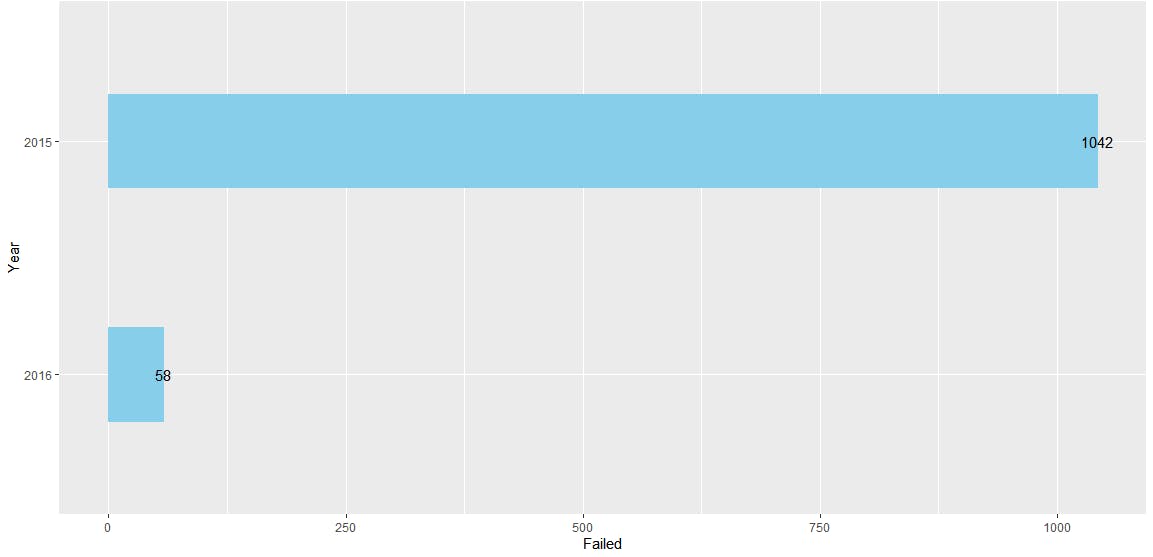
Suppose you want to check the number of companies that failed inspections in 2015 versus 2016.

If you view the data in the Atlas UI, you will notice that the date field is a String. To convert it into date type and then extract the year will require some processing— or so you would think. But, with the Mongodb aggregation pipeline, you can do everything in a single query. For manipulating the date field, use the $addFields operator.


You are grouping the results by year, so it’s easy to create a plot:


You can see this new chart in RStudio. Using the aggregation framework made it easy to extract the data from the database and structure it in a way that was easy for R to plot in our chart.

Next, let’s create a line plot. Let’s use the companies collection, which contains information about companies such as their foundation year and their headquarter addresses. To explore this dataset, create a new file companies_collections.R.

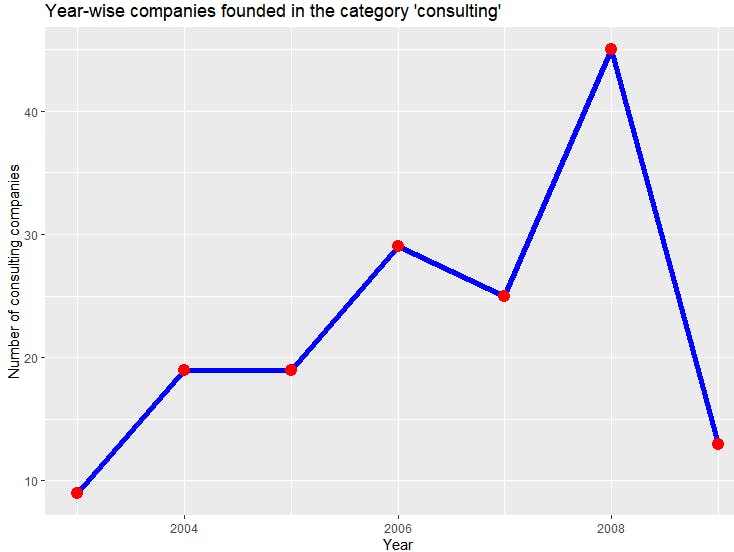
Say you want to know the trend of the number of companies with category_code = 'consulting' founded after 2003. For this, use the relational operator $gt, group the results by founded_year and sort them to be displayed in the line plot. Again, this can be done in a single query.


You can see a steady increase in the number of consulting companies until 2008, after which there is a steep decline. Once again, using the aggregation framework made it easy to transform the data in a format ready to be used with R.

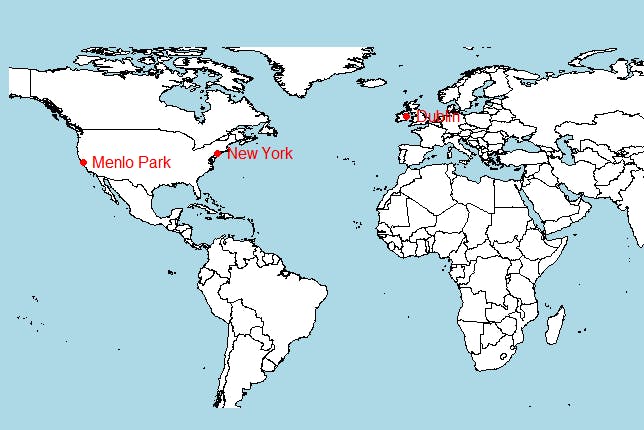
You can also create maps from data received from MongoDB. Let’s find all the office locations of the company named Facebook. Note that the offices field is an array with many objects having fields like city, latitude, and longitude. To retrieve individual objects and fields, use the $unwind aggregation operator— another operator that can get most complex objects in a simpler form to extract data in an efficient way.


For more advanced analytics, you can use sophisticated APIs like ggmap as well. Since this is a simple display, use the basic map() function.

MongoDB and R allow you to perform different types of analytics. R is also popular for extracting statistics from data. To understand that, let’s use the grades collection which contains information about grades of students for a set of assignments. Create a new file grades_collection.R where you will load this collection.


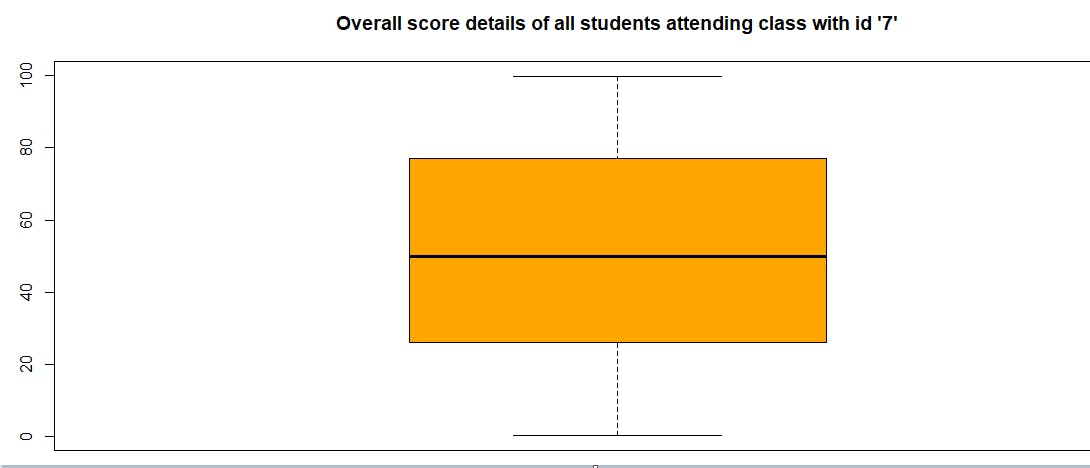
Let’s get the average of all the scores of all the students who attended the class with id 7. Use $project to get only specific fields.


The scores field is an object which has a type and score fields. You can extract all the score values into a single vector:


R provides us with many tools to manipulate the data from those grades. Get the median and mean of the class using statistical functions:


You can get the same information and more using a box and whisker plot:


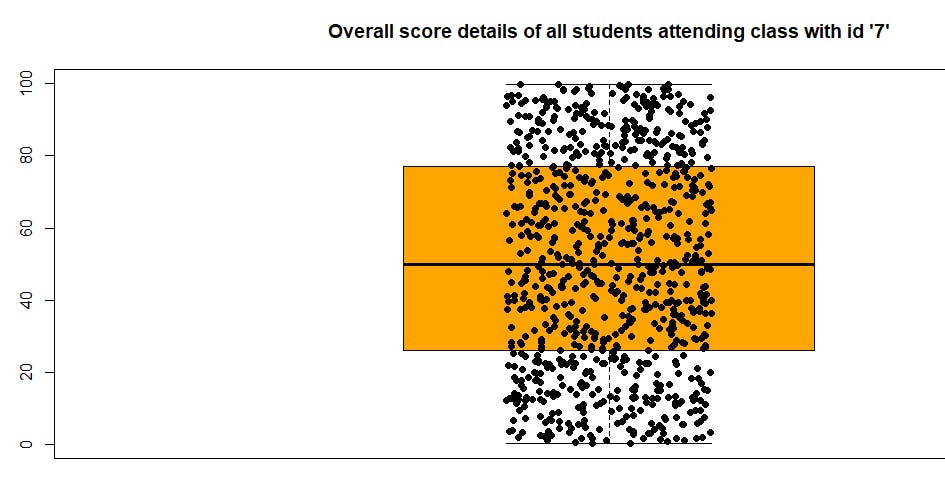
You can add all the data points using the stripchart function:


View the same statistics on the console using the $stats function:


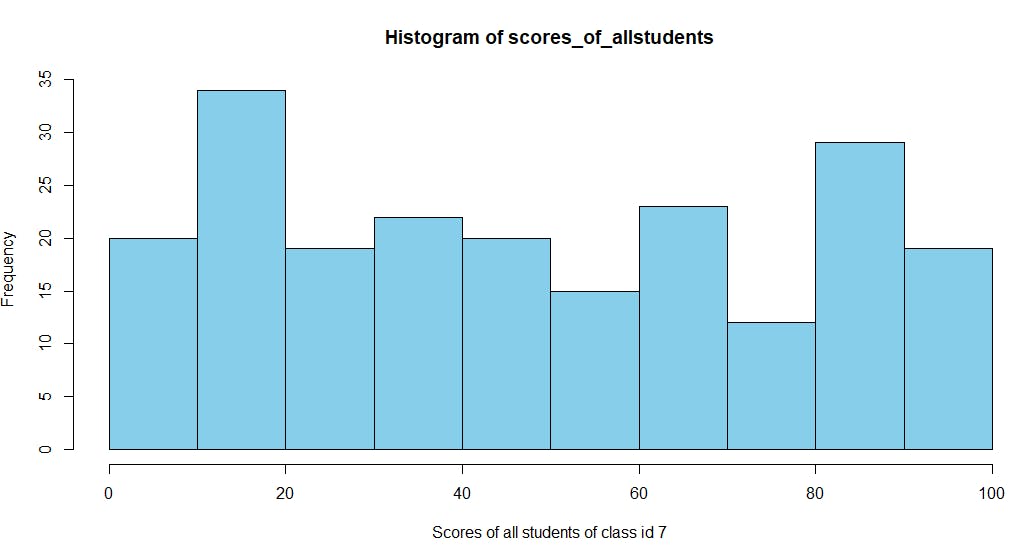
You can also plot a histogram to see the ranges of scores of students of class_id 7 in the exam:


To view the range (min and max values) and all the data points, use the R functions range() and sort() respectively:


You can perform a lot of complex manipulations and data analysis using MongoDB and R. You can try a few more now that you have the datasets and hands-on experience.
Conclusion

Through this MongoDB and R tutorial, you learned how to connect MongoDB and R, and explored various collections to perform data analytics. You saw how to perform complex manipulations and data analysis. As a next step, you can explore data analysis with heterogeneous data sources.

FAQs

Get started with Atlas today

Get started in seconds. Our free clusters come with 512 MB of storage so you can play around with sample data and get oriented with our platform.
Try FreeContact sales
GET STARTED WITH:
  • 125+ regions worldwide
  • Sample data sets
  • Always-on authentication
  • End-to-end encryption
  • Command line tools